Why Opt for a Villa Intercom System Upgrade
Security and convenience are no longer luxuries but necessities today. A villa intercom system offers both by allowing homeowners to communicate with visitors at the gate, monitor their environment, and remotely allow visitors in. Whether you are receiving deliveries, welcoming guests, or securing your loved ones, a cutting-edge intercom system is invaluable. Uniwin-Global was founded in 2016. As a IOT smart device solution provider with an abundant product and engineering background, Uniwin-Global focuses on providing customers with industrial control boards and intelligent system solutions, including but not limited to attendance terminal, apartment intercom, villa intercom, etc. Our villa intercom systems are designed to seamlessly integrate into smart homes while enhancing functionality and elegance.
Typical Installation Challenges
Installation of a villa intercom system would seem daunting in the wake of wiring issues, incompatibility with existing infrastructure, or with limited technical skill. However, with proper planning and guidance—specifically through the use of systems like our own at Uniwin-Global—such challenges are eliminated.
Choosing the Right Uniwin-Global Intercom
Key Features to Look For
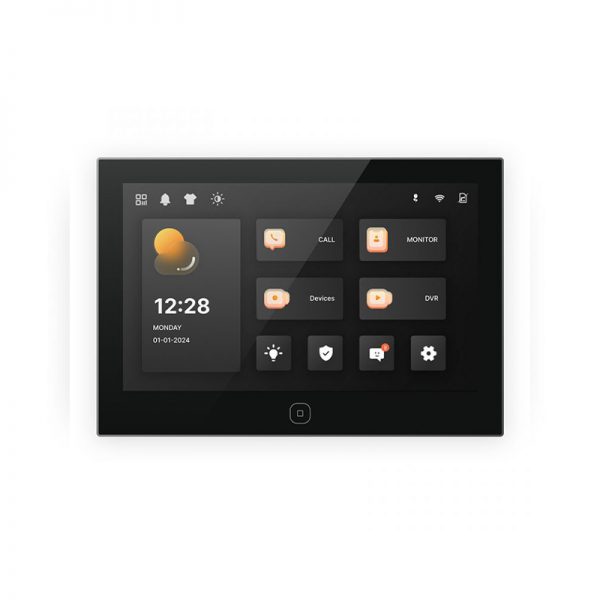
We recommend our WI704 Intelligent Intercom System for its balance of functionality and ease of use:
- Two-way video communication with door stations or video doorbells.
- Remote unlocking capability.
- Support for elevator calling and multi-house communication.
- Integration with fire and security alarms, supporting up to 8 wired zones.
- Four-segment video monitoring for enhanced security.
Wired vs Wireless Options
Wired systems offer a solid performance but require more extensive work on installation. Wireless systems are easier to install but may suffer from connectivity problems depending on the signal strength. Fortunately, the indoor unit and the video doorbell are both supported by a POE power supply, enabling hybrid installations for optimal flexibility.
Compatibility with Smart Home Devices
Modern homes often include smart locks, surveillance cameras, and automation hubs. The indoor unit can connect up to 8 visual doorbells or standard IPC cameras, ensuring seamless integration into your existing ecosystem.
Pre-Installation Preparation
Tools & Materials You Will Need
- Drill and screwdrivers
- Cat5e/Cat6 network cables
- Power adapters (if not using PoE)
- Mounting brackets (included)
- Cable tester
- Safety gloves and glasses
Planning the Installation Layout
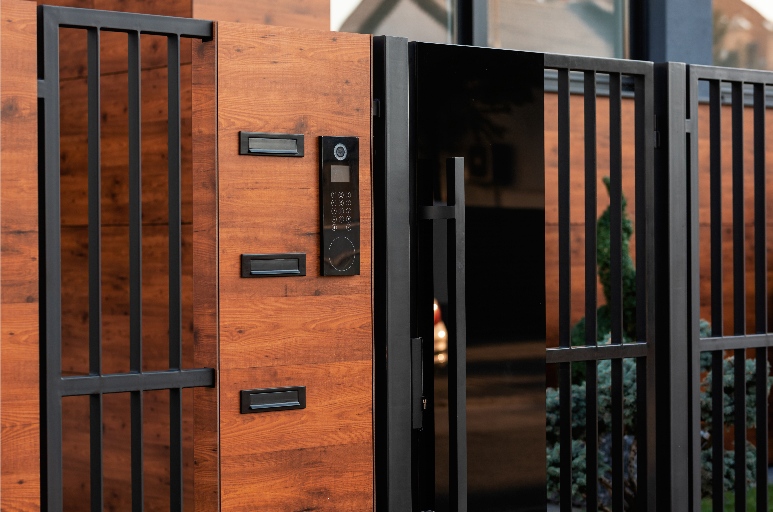
Determine where you’ll place the indoor unit (WI704)—typically near entrances—and where outdoor panels will be mounted. Consider visibility angles for cameras and accessibility for users of all ages.
Safety Tips Before Starting
Always turn off power sources before handling electrical components. Use insulated tools when working near wiring. If unsure about any step in the installation guide process, consult a professional technician or contact our technical support team. We have a strong technical support team. As such, customer complaints will be replied to within 2 hours and resolved within a maximum of 48 hours.
Step-by-Step Installation Process
Installing the Indoor Unit
- Install WI704 onto a flat wall surface using the provided screws.
- Connect it by Ethernet cable in case of using POE; otherwise, use a power adapter.
- Put it in range of your home Wi-Fi if necessary.
- Power unit on and check boot-up status via LED indicators.
Installation of Outdoor Panel
- Mount a compatible outdoor panel at eye level near your entrance gate or doorbell placement.
- Connect it via a network cable or a wireless module, based on your installation.
- Check that the camera angle captures the visitor’s approach clearly.
Installing Power and Network Cables
If using POE,the network cable connects to the POE switch/router. If not,install an individual power supply for each unit. Verify that the supplied voltage from the PoE switch or power adapter matches the device specifications before powering on. Supports a single outdoor doorbell calling multiple indoor units—ensure each indoor unit is correctly registered to the doorbell group during installation.
Syncing Devices and Testing
Post power-up:
- Open the settings menu on the WI704 screen interface.
- SYNC the outdoor panel through SIP settings.
- Test call between units.
- Test the remote unlock feature from the indoor monitor.
- Recheck camera angles if required after previewing the video.
Wireless Installation Made Simple
How Uniwin-Global Makes Wireless Installation
Our SIP-based intercom solutions are plug-and-play for simple wireless installation. The related products and solutions have been deployed widely by many well-known brand customers in similar markets. This means our firmware is compatible with most home routers out of the box without additional setup—and our proprietary APIs simplify it for developers to integrate into smart home applications.
Avoiding Common Wiring Issues
Using PoE (Power over Ethernet) simplifies installation by reducing cable clutter—each unit requires only one Ethernet cable for both power and data. Ensure your PoE switch provides sufficient power for all connected devices. This prevents user error when setting up, but maintains the performance constant in the long run.
Configuration and Customization
Configuring User Preferences on the System
Use the WI704’s touchscreen interface to set up individual user profiles:
- Configure ringtones
- Set call forwarding
- Define security zones
This provides customized interaction for all household members.
Adjusting Audio and Video Settings
Navigate through settings > display/audio:
- Adjust contrast & brightness based on lighting conditions
- Maximize speaker volume & microphone sensitivity
This improves clarity in two-way communication sessions.
Adding Multiple Users or Rooms
Provides single-channel and multi-channel preview, enabling you to give individual rooms or family members their own access credentials or sub-monitors—ideal for large villas or multi-generational families.
Maintenance and Troubleshooting Tips
Regular Checks to Keep It Running Smoothly
Monthly maintenance checklist:
- Clean lenses on cameras
- Update firmware
- Test emergency alarms
All parts are guaranteed to be new and packaged, with long-term reliability if maintained correctly.
Troubleshooting Common Connection Problems
- No video feed? Check the Ethernet connection or reboot the router if wireless.
- No audio? Check mic/speaker ports; volume setting; reboot device.
- Still not fixed? Call—customer issues will be answered in 2 hours or less by our customer support team.
FAQ
Q: Can I install this myself without hiring an electrician?
A: Yes! With the least amount of tools and our easy-to-follow instructions included with every purchase, DIY installation is feasible, especially using POE-supported models such as WI701.
Q: Is this compatible with my current smart home setup?
A: Yes! Supports standard smart home integration protocols such as MQTT for IoT communication, allowing connectivity with third-party platforms. Alexa and Google Home compatibility may require a hub or cloud integration.
Q: What happens if there is a power outage?
A: We recommend adding UPS backup systems for uninterrupted operation during downtime—especially important if you rely heavily on remote monitoring functionality.
Q: What is the system user count?
A: Several users can be integrated using app pairing or direct setup on WI704, optimized for use with families needing individual access rights across different rooms/devices.